
Tutorial
How it works, in 5 steps
Follow the green glowing button on each screen. That is the one to tap.
Step 1
Sign up (computer first—phone second)
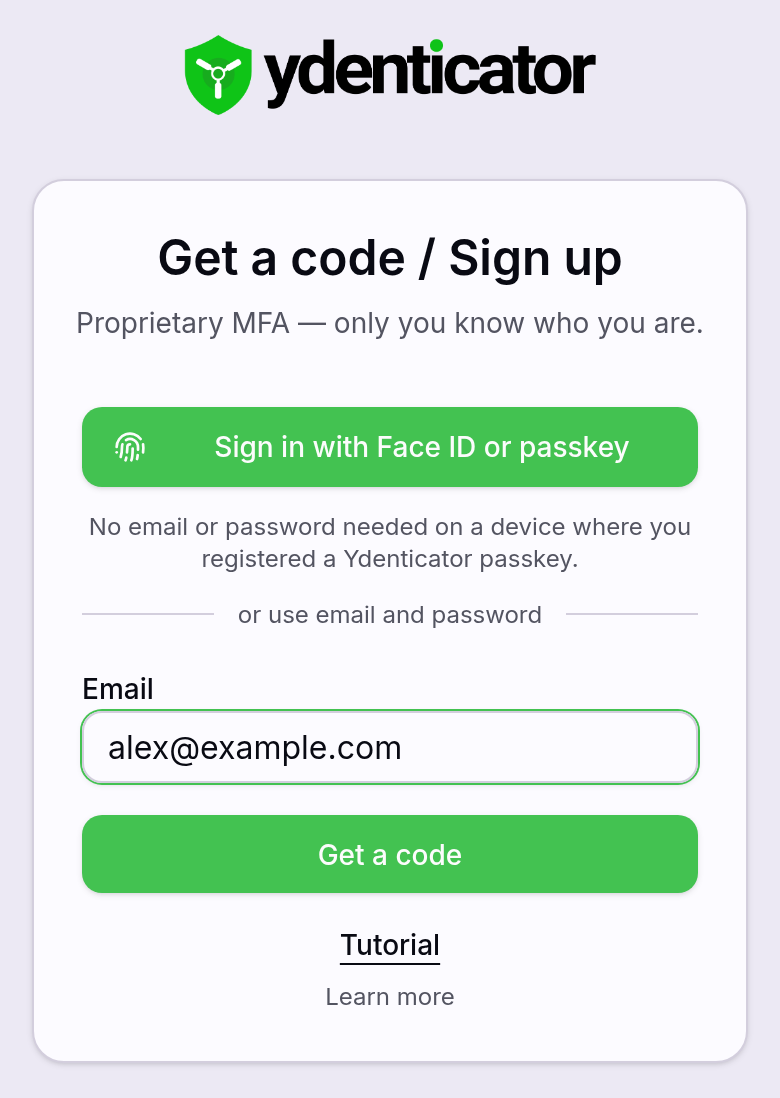
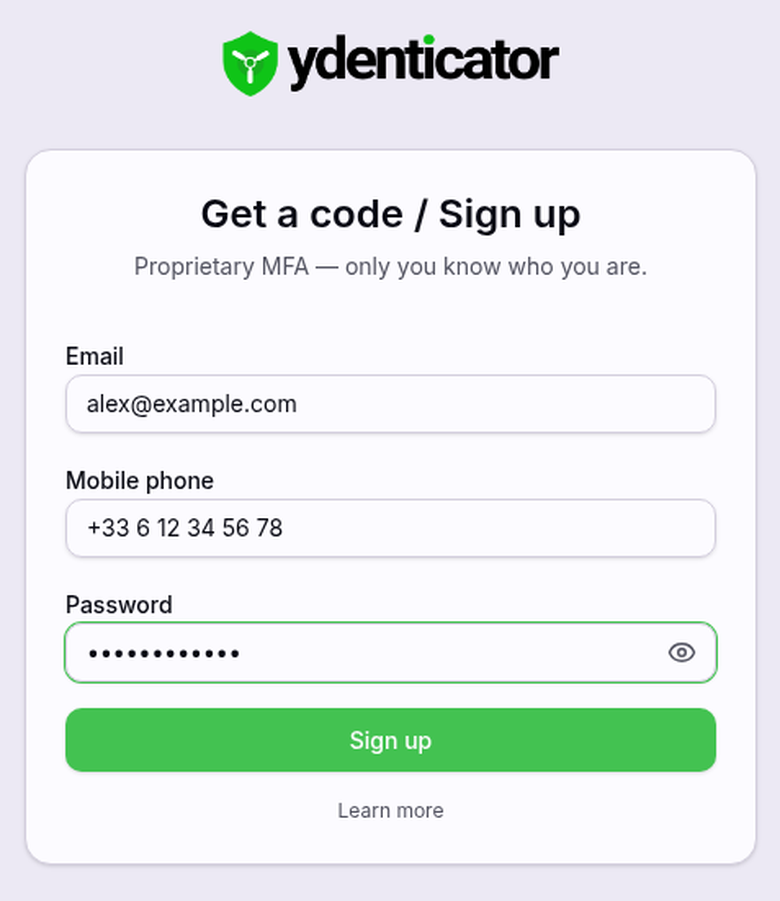
On your computer, type only your email, then tap Get a code. If you don't have an account yet, the sign-up form appears with your email; add your mobile phone number and a password, tap Sign up, answer the 30 general questions, and turn on Face ID if you like.
What you will see
Step 2
Register a provider
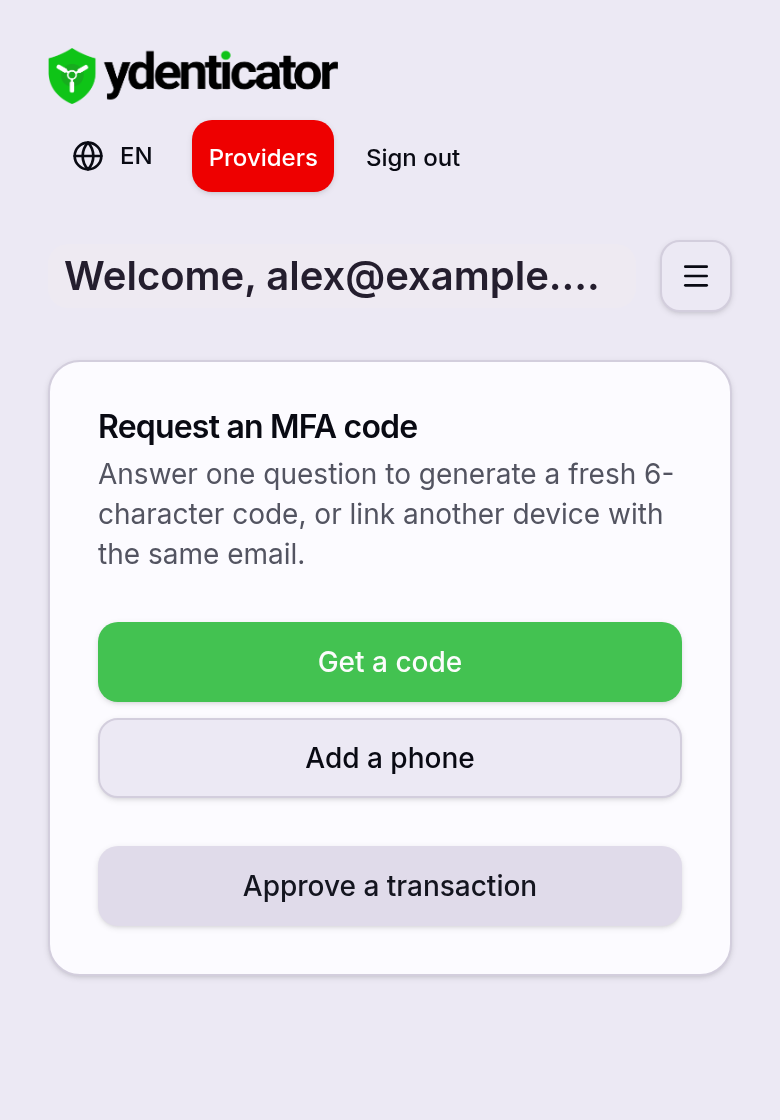
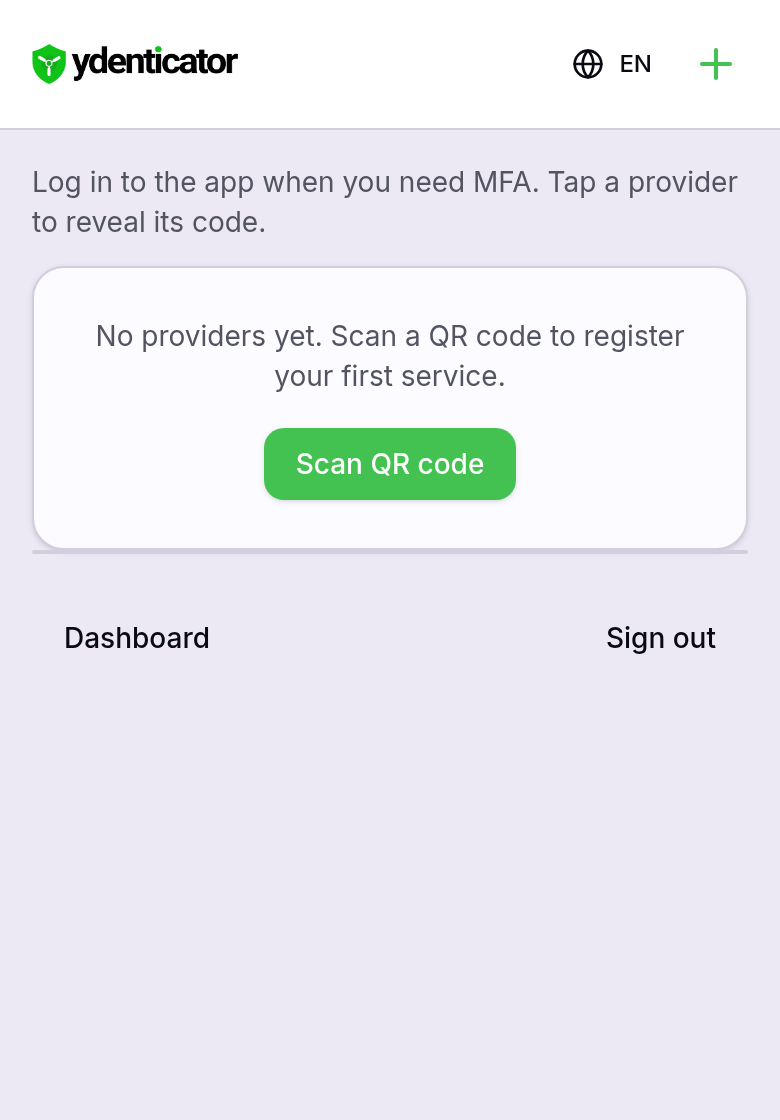
A provider is the website you want to protect (bank, email, exchange). Tap Providers, then Scan QR code, and point your camera at the QR code shown by that website.
What you will see
Step 3
Get a code (connect and generate)
Tap Get a code, answer one of the 30 questions, get the one-time code, and type the code into the provider website.
What you will see
Home screen. Tap the glowing button Get a code to use a code on a website you have registered.
Next times
- Sign in and go straight to Get a code (step 3).
- Adding a new website? Register it first (step 2), then get a code.
Step 4
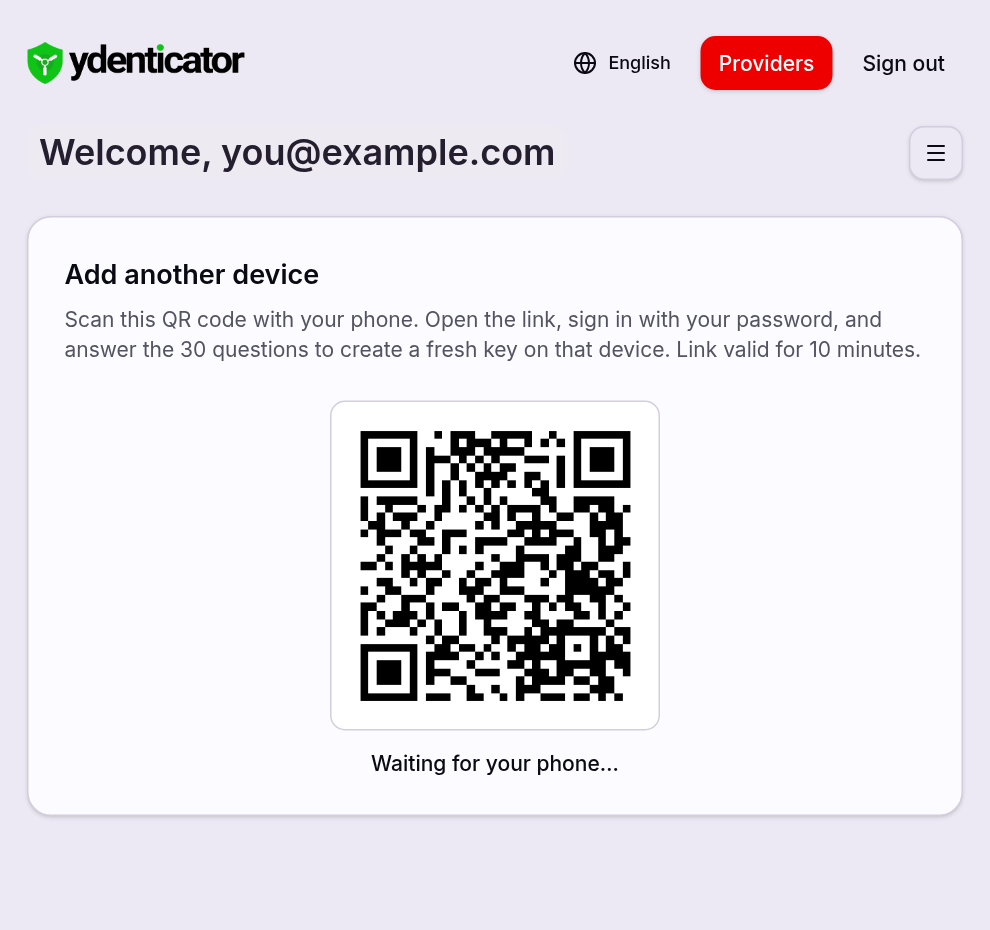
Now add your phone
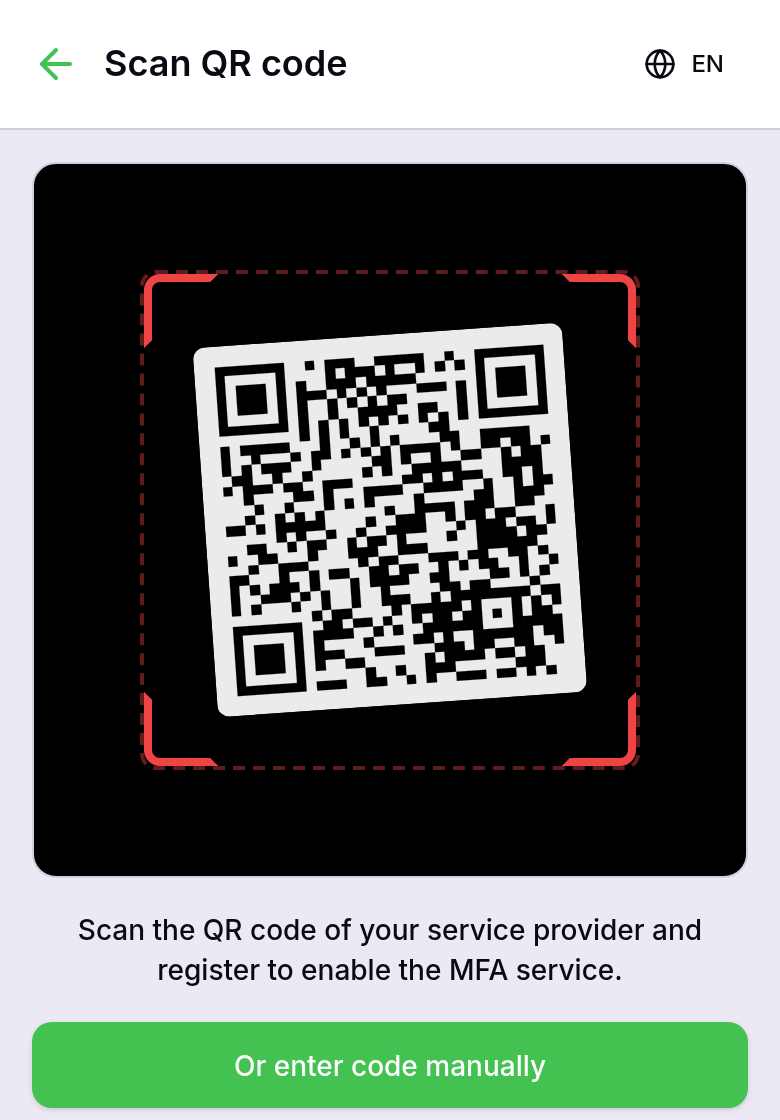
On your computer, tap Add a phone and answer one question to display the pairing QR code. On your phone, open Ydenticator and sign in with the same account, then scan that QR code. Keep both screens open until pairing is confirmed.
What you will see
Step 5
Proof of transaction (optional)
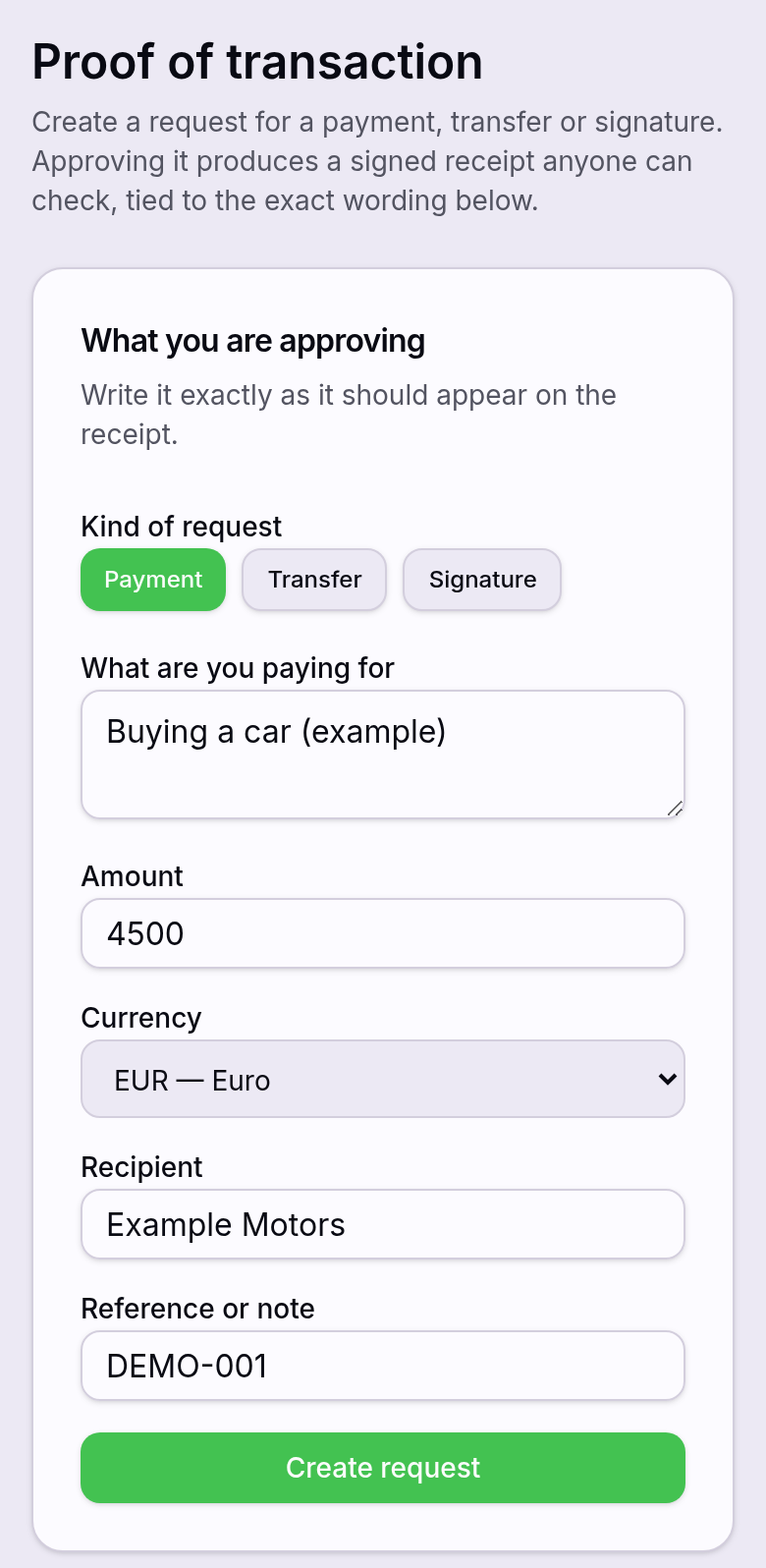
On a linked device, tap Approve a transaction. Enter the transaction details and create the approval request. Check the details carefully, answer the question and confirm approval only if everything is correct. Wait for the approval confirmation.
What you will see
Quick answers
- My code does not work
- Codes expire quickly. Tap Get a code again and use the new one.
- Providers is still red
- You have not registered a website yet. Do step 2.
- I lost my phone
- Sign in on another device and use your recovery codes, or tap Help.